
For gaming
Keyboards for gaming: build your own controls
Remap the main layer, put controls where you want them and assign macros to build your own gaming setup.
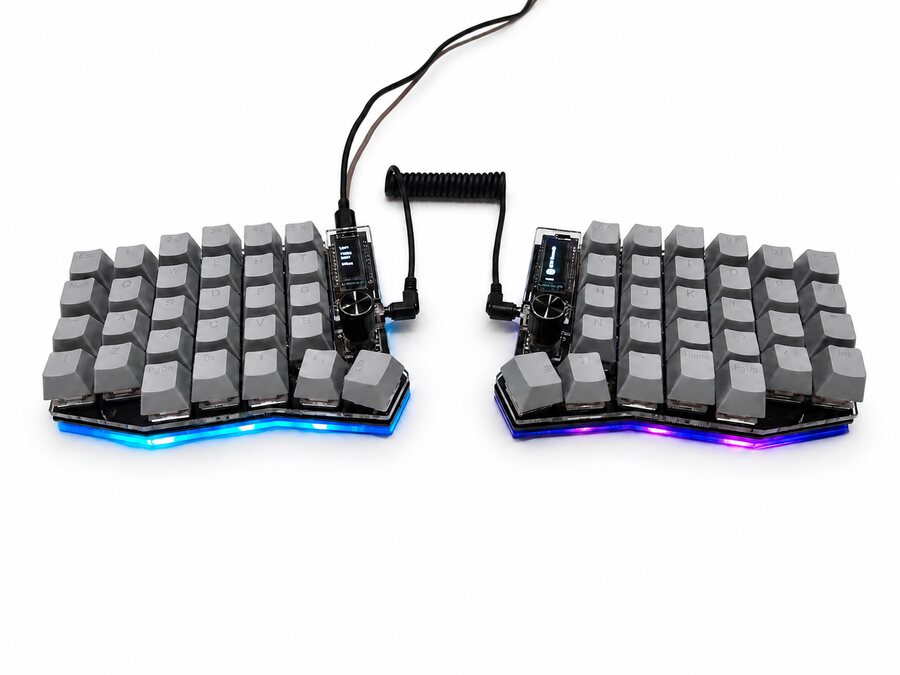
Your keyboard can become a set of controls built around your games. In our configurator, you can adjust the main layer: choose what each key does, where numbers sit and which actions move to your thumbs. The loaded keymap is a starting point. You decide how to arrange your controls for gaming.
Turn your control list into a keymap
Movement, jump, crouch, inventory, abilities, items, chat: list the actions you use and the combinations you need to hold together. Use that list to design your layout in the Zelvoq Configurator. You can dedicate the main layer entirely to gaming, with your regular controls within reach.
For example, keep WASD, put jump and crouch on thumb keys and turn other nearby keys into 1, 2, 3, 4 and 5. Even if their keycaps have letters printed on them, those keys will send the numbers you assign.
Give your thumbs more actions
Each thumb has several keys to use. You can dedicate one to jumping, another to crouching and another to interacting, reloading or an ability. Choose assignments around the actions you use together and the fingers you want to keep on movement.
A layer-switch key can give you another set of controls for inventory, maps, communication or secondary actions. That gives the same physical keys additional functions. Before buying, compare how many actions you want directly available and which ones you would group on another layer.
Macros for combinations and sequences
A macro can send a combination or sequence of keypresses from one key. You can prepare repeated inputs or a key sequence for a combo and assign it to a convenient position. The Zelvoq Configurator includes a macro editor so you can assign them easily.
Test each sequence inside the game and adjust its inputs. A combo also depends on timing and the state of the game. Use these features in line with the rules of the game or tournament.
One keymap for gaming, another for typing
You can dedicate the main layer to gaming and prepare another layer for typing. A key configured to toggle layers works like a switch: one press activates the chosen layer and another deactivates it. You do not have to hold it down. Keep that function in the same position on both keymaps so you can get back.
Save a copy of your layout before reorganizing it. The configurator can save and load keymaps as well as write changes to the keyboard. Start with your main controls, test them in a practice session, then add macros or secondary actions.
Choose room for your controls
Corne brings 42 keys into a compact layout. Lily58 and Sofle have 58 keys and a physical number row; Sofle adds two knobs. All three let you change assignments. Choose around the number and position of direct controls you want, the thumb keys available and the room you need beside your mouse.
Then choose your color and switches on the product page. When the keyboard arrives, position the halves your way and configure your keymap. You can concentrate frequent actions on the half you use while gaming and keep the remaining keys for chat, menus or other tasks.
Choose the base for your controls
Corne, Lily58 and Sofle can all be remapped for gaming. Compare their space and available keys, then decide where each action belongs and complete your configuration in the store.
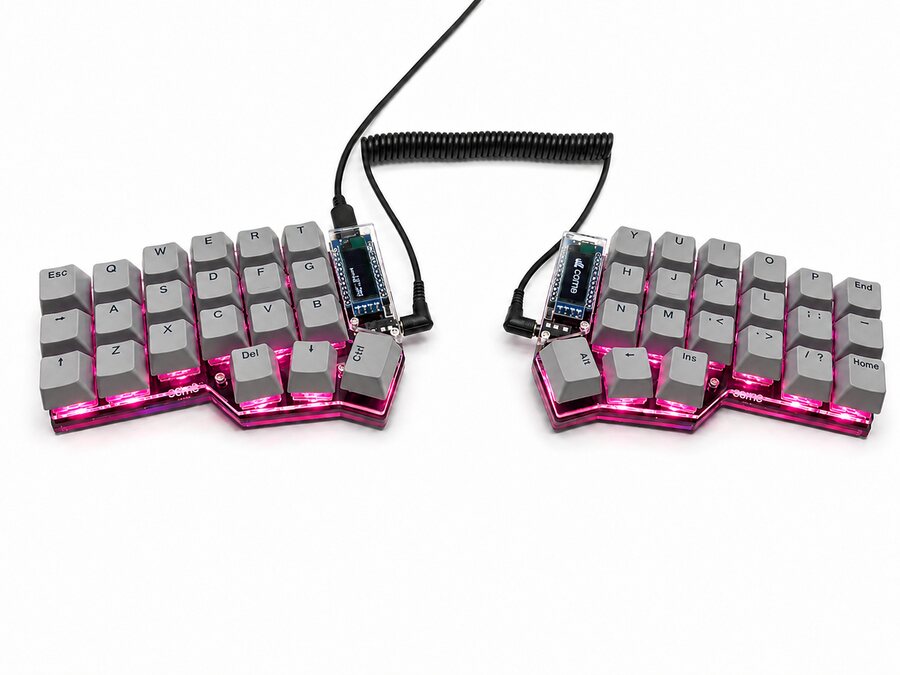
Corne
For anyone who wants just the essentials and isn't afraid of learning layers.
View configuration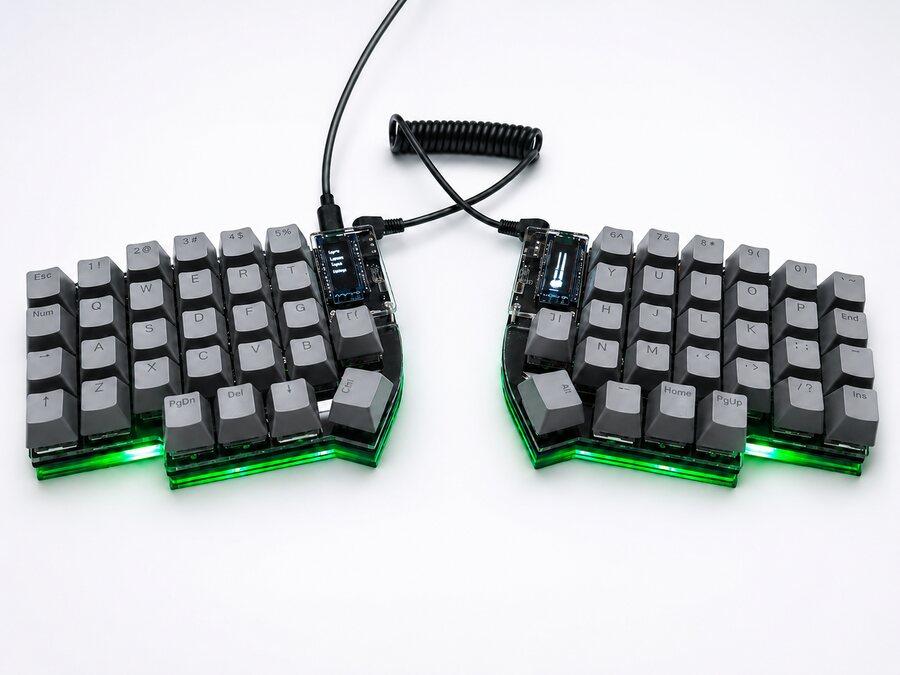
Sofle
For anyone who wants hands-on controls: volume, scrolling or whatever you assign in the configurator.
View configurationBefore you choose
Can I put numbers on Corne’s main layer?
Yes. You can remap keys on the main layer to send numbers, even if their keycaps show letters. Corne has no physical number row, but you decide which functions are directly available in your gaming keymap.
Can one key trigger a combo?
Yes, you can assign a macro containing a combination or sequence of keypresses.
Can I return to my typing layout?
Yes. You can configure a toggle key: press it once to activate the other layer and again to return, without holding it down. That function must stay accessible on both layers. You can also save copies of your keymaps and load them in the configurator.