
Your first split
Your first split keyboard: what changes and how to choose
Learn how a split keyboard works for typing, work or programming. Compare the keys, layers and options on Corne, Lily58 and Sofle.
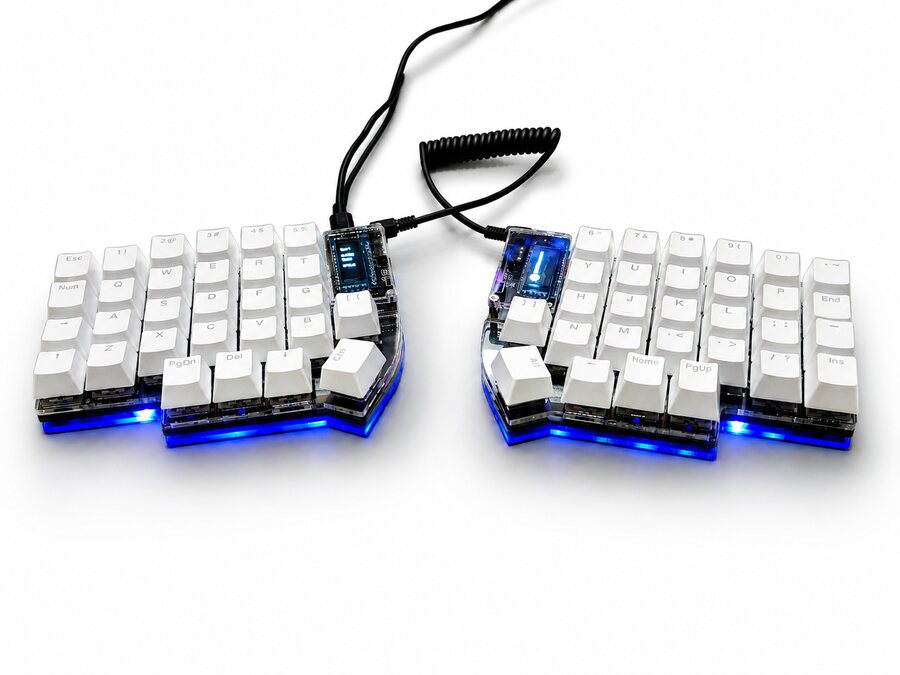
A split keyboard has one half for each hand. You can separate the two pieces, angle them to suit you and change what the keys do. If you are coming from a conventional keyboard, it helps to understand three changes before choosing: columns, thumb keys and layers.
Two halves you can position your way
Instead of moving one solid block, you decide where each hand sits. Start with the halves close together and adjust their separation and angle to suit your desk. Consider your mouse, cables and the objects you use while working too.
The keys on these models are arranged in columns, with different heights for each finger. Some typing movements will differ from the staggered rows on a conventional keyboard.
Fewer physical keys, more functions per key
A layer is another set of functions on the same keys. For example, holding Lower in Corne’s keymap turns the top letter row into numbers. Release the layer key and you are back to letters.
You can explore those layers on the website without connecting a keyboard. If you work with numbers, arrows, brackets or shortcuts, find those functions in the keymap and check how you would reach them during a familiar task.
Choose around what you type
Make a short list: do you enter numbers often, use lots of symbols while programming or prefer to keep numbers visible? Corne brings the layout into 42 keys and uses layers for numbers.
Lily58 and Sofle have 58 keys and a physical number row. Sofle adds a knob on each half. Comparing those differences will help you more than choosing only by the size of the photo or the amount of lighting.
Adjust one thing at a time
The models arrive assembled with a keymap loaded. First find Space, Enter, Backspace and the layer keys: some of those actions move to your thumbs. Try typing a message, using your shortcuts and completing a familiar task.
When you find a key you would move, open the Zelvoq Configurator in desktop Chrome or Edge and review its assignment. Save the change and return to that task. You can then evaluate each adjustment without changing the whole layout at once.
Feel is part of the choice too
Alongside the model, you can choose color and switches from the store’s options. Switches affect the force, feel and sound of each press. Think about where you will type and how you want a key to feel.
Use the comparison and recommendation tool to work through those decisions. If you are choosing between two models, compare their keymaps against your task list before opening the purchase configuration. The tester and getting-started guide will be there when you begin.
Find your starting point
Compare Corne, Lily58 and Sofle with your tasks in mind. The number row and knobs are choices about use; color and switches complete your configuration.
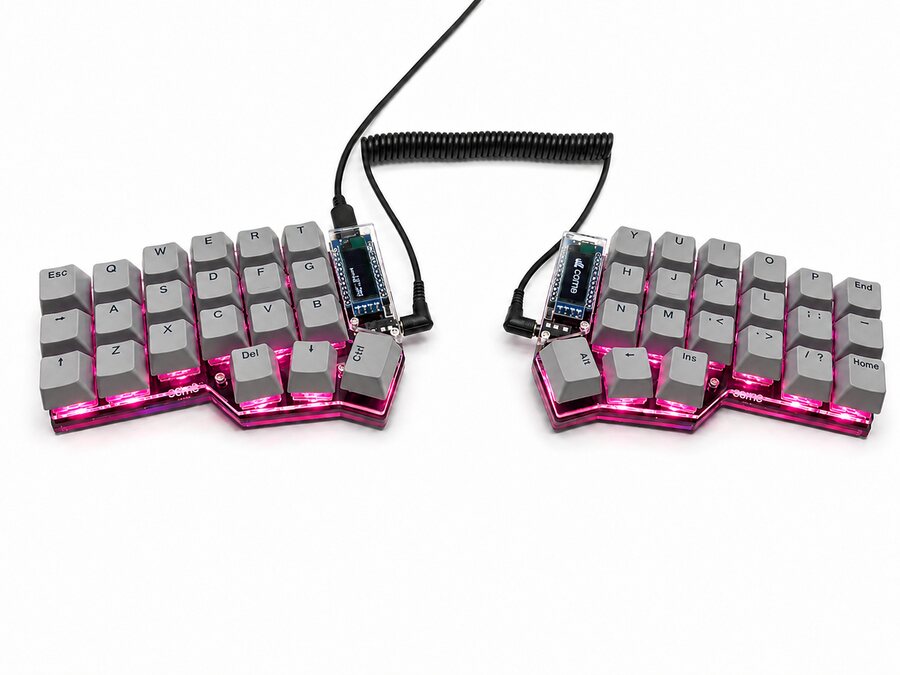
Corne
For anyone who wants just the essentials and isn't afraid of learning layers.
View configuration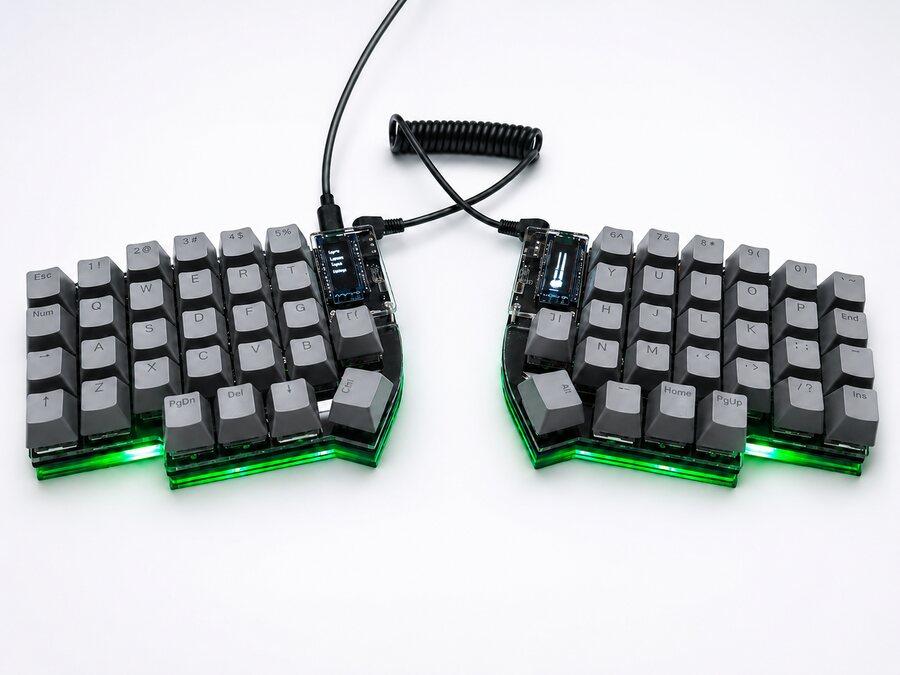
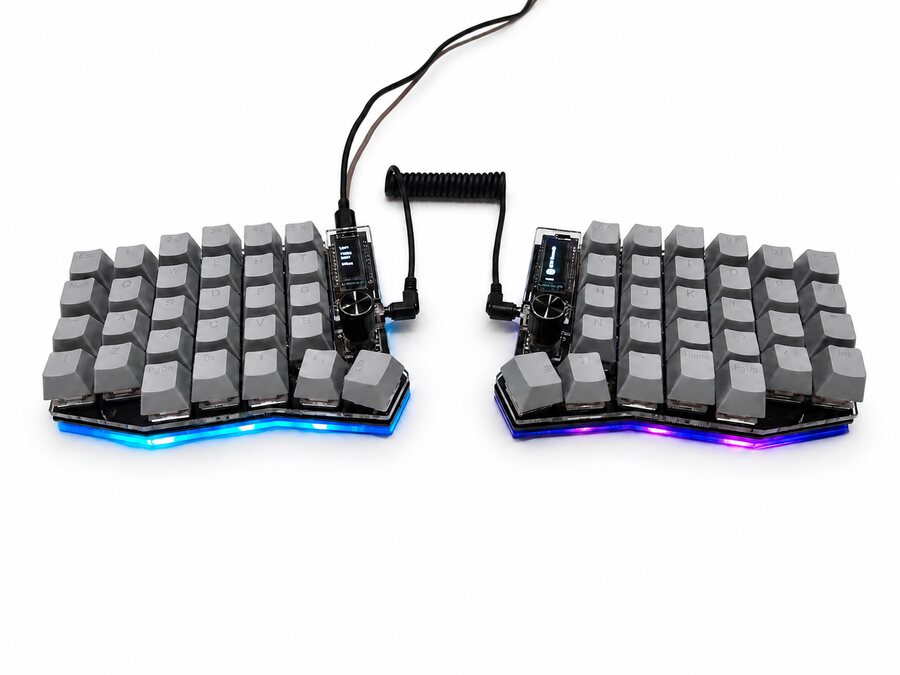
Sofle
For anyone who wants hands-on controls: volume, scrolling or whatever you assign in the configurator.
View configurationBefore you choose
Do I need to know how to code?
These models arrive assembled with firmware loaded. You can edit assignments in the configurator without writing code.
Where should I start if I use lots of numbers?
Compare Lily58 and Sofle: both keep a physical number row. If Corne interests you, explore how its layers access numbers first and decide whether that fits your tasks.
Will the viewer’s layers always match my keyboard?
The viewer shows Zelvoq’s reference keymaps. If you edit assignments in the configurator, your keyboard may have a different layout. Keep your changes in mind when using the tester.