ZelvoqKeyboards

Split keyboards, built in Chile

Two halves.Your rules.

Corne, Lily58 and Sofle, each one assembled and tested before it ships. Put each half wherever suits you, and change what every key does from your browser, with VIA.

TabQWERTCtrlASDFGShiftZXCVBWin ⌘LowerSpaceLAYERBASEYUIOP⌫HJKL;'NM,./EscEnterRaiseAltGrzelvoq
models to choose from
3
keys, depending on the model
42–58
to change any key
VIA
warranty
6 months

What a split is

A keyboard cut in two, on purpose.

  1. 01One half per hand

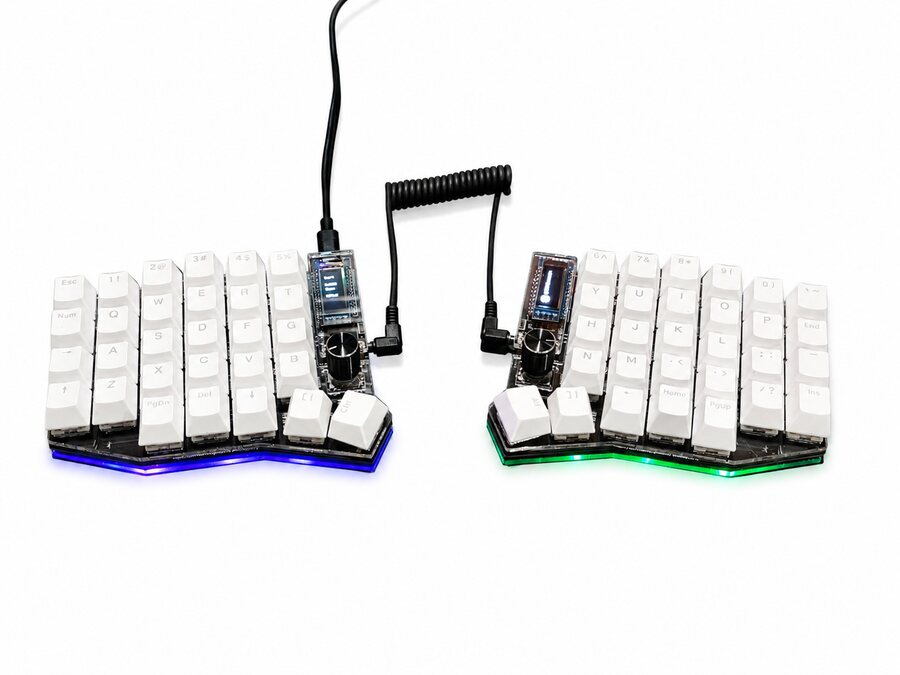
    Set the halves as far apart as feels right, even shoulder width, and angle them however you like. Your desk, your angle.

  2. 02Columns, not steps

    On a regular keyboard the rows are staggered sideways, a leftover from typewriters. Here keys sit in columns, and each column moves up or down to match the finger that uses it.

  3. 03Your thumbs get to work

    On a regular keyboard both thumbs share one space bar. On a split each thumb has its own cluster: space, Enter and the layer keys.

  4. 04Layers: fewer keys, all within reach

    Hold Lower or Raise and the same keys type numbers, symbols or arrows. No reaching for the top row.

TabQWERTCtrlASDFGShiftZXCVBWin ⌘LowerSpaceLAYERBASEYUIOP⌫HJKL;'NM,./EscEnterRaiseAltGrzelvoq

Models

Three ways to split a keyboard.

All three have swappable switches, OLED screens, RGB lighting, an acrylic case and VIA. What changes is how many keys they have and where they put them.

Keycap color
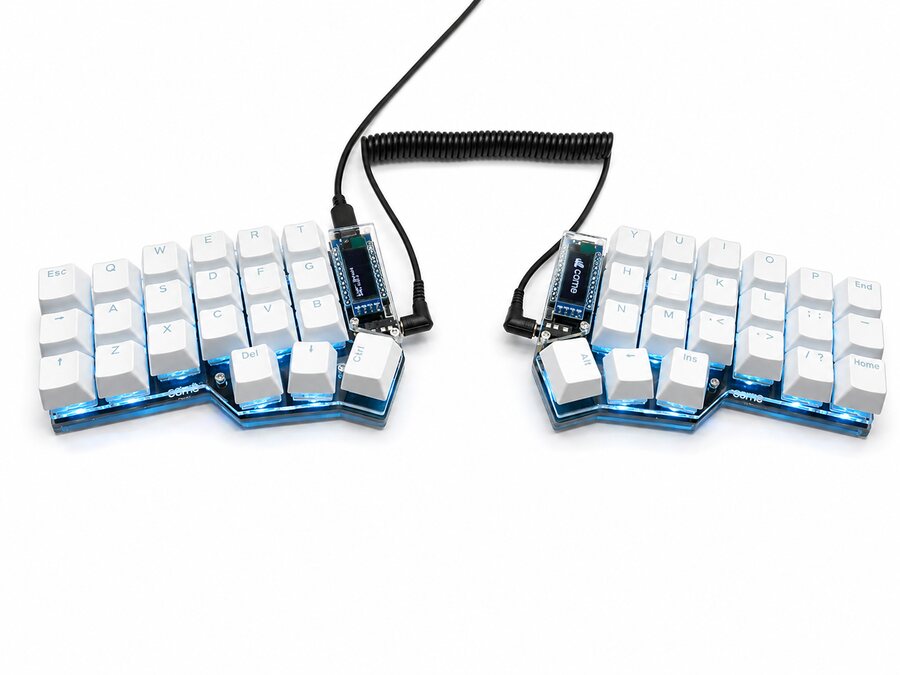
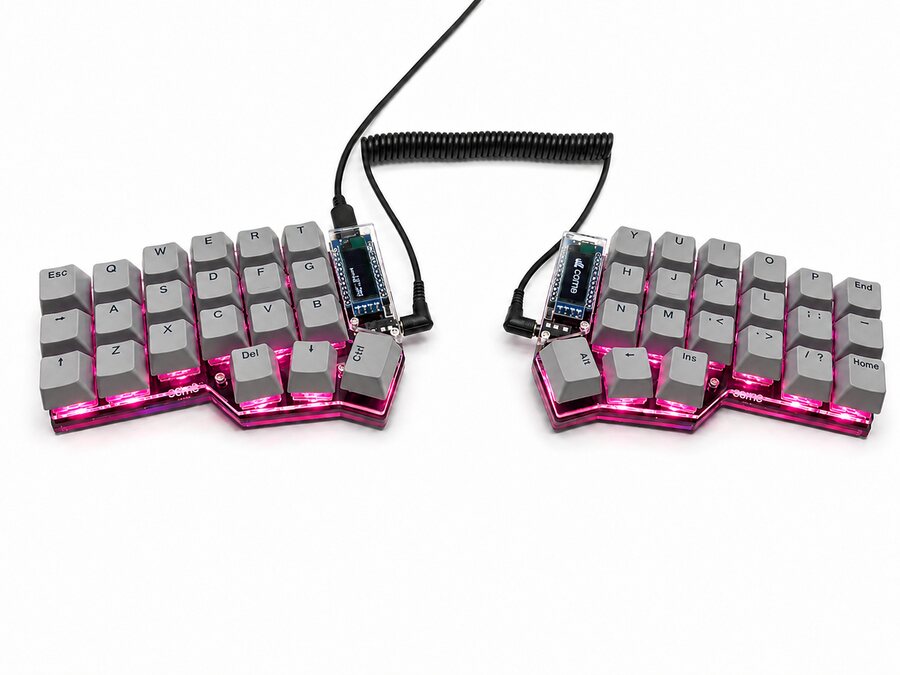
Assembled Corne with gray keycaps, photographed on a white background

Corne

The compact one

Three rows and three keys per thumb. Numbers and symbols live on layers, so everything is one finger away.

Keys
42
Number row
No
Keys per thumb
3
Knobs
—
Lighting
Per-key and underglow RGB
Screens
0.91" OLED per half

For anyone who wants just the essentials and isn't afraid of learning layers.

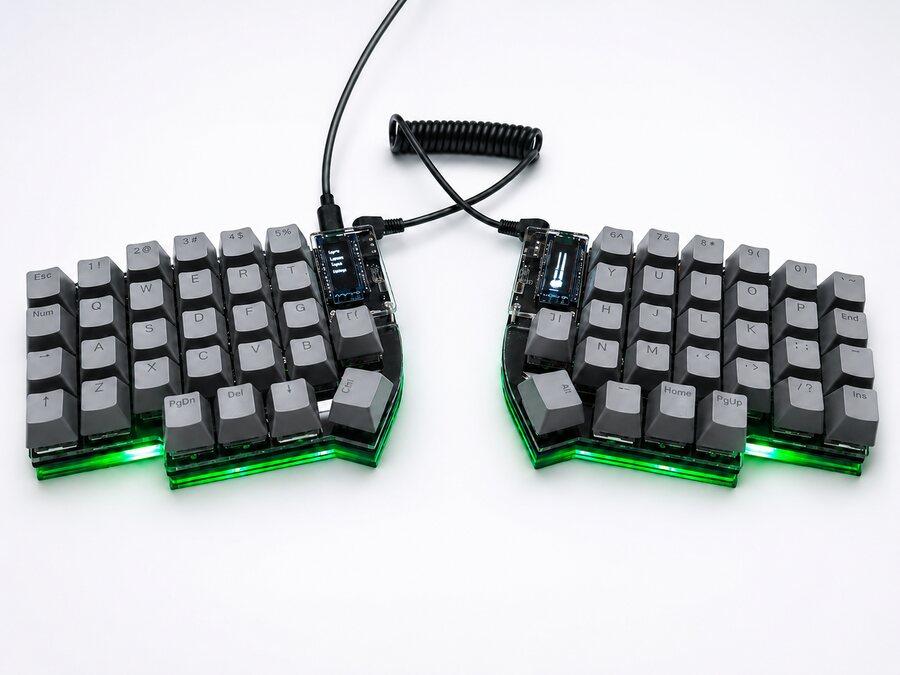
Assembled Lily58 with gray keycaps, photographed on a white background

Lily58

The balanced one

A number row and four keys per thumb. It feels familiar from day one and leaves room to add layers over time.

Keys
58
Number row
Yes
Keys per thumb
4
Knobs
—
Lighting
Underglow RGB
Screens
0.91" OLED per half

For your first split, if you'd rather keep the number row.

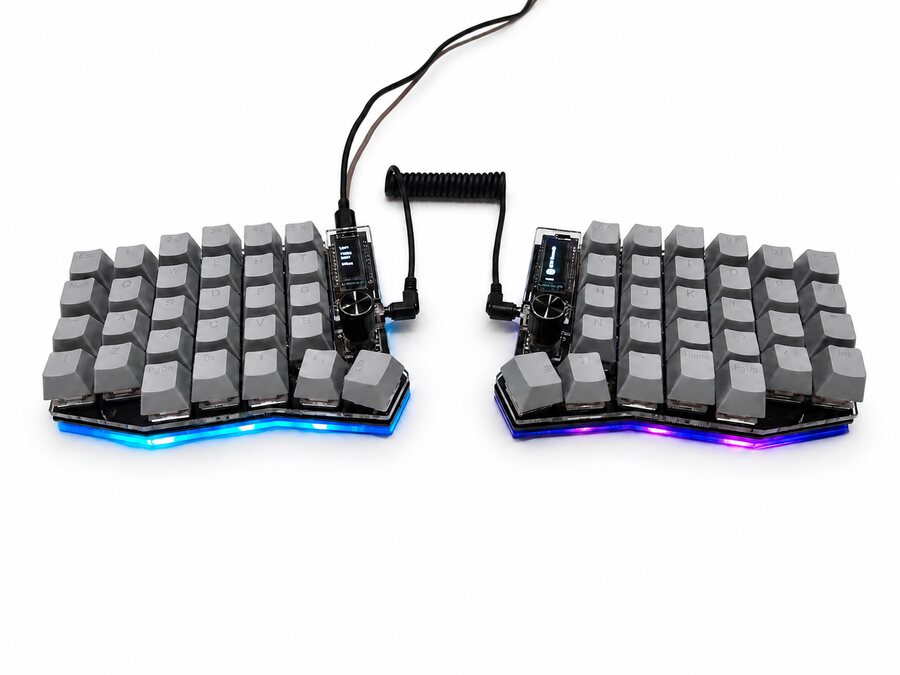
Assembled Sofle with gray keycaps, photographed on a white background

Sofle

The one with knobs

A number row, five keys per thumb and a knob on each half. Out of the box, one handles volume and the other scrolls through pages.

Keys
58
Number row
Yes
Keys per thumb
5
Knobs
2
Lighting
Underglow RGB
Screens
0.91" OLED per half

For anyone who wants hands-on controls: volume, scrolling or whatever you assign in VIA.

Which one is for me?

Do you use the number row a lot?

What's included

It arrives assembled. Plug it in and type.

Every keyboard is assembled, programmed and tested before it ships. In the box:

  • Both halves, ready to go

    Switches, keycaps, screens and lights already fitted. The switches come out without soldering, so you can swap them whenever you like.

  • VIA preloaded

    It works as soon as you plug it in. To change keys, layers, macros or lighting, open VIA.

  • USB cable and coiled cable

    The USB cable goes to your computer. The coiled 3.5 mm cable joins the two halves.

  • Keycap puller

    To pull keycaps without scratching them, whether you're cleaning or swapping switches.

  • Switches and keycaps are your choice, depending on what's in stock when you buy.
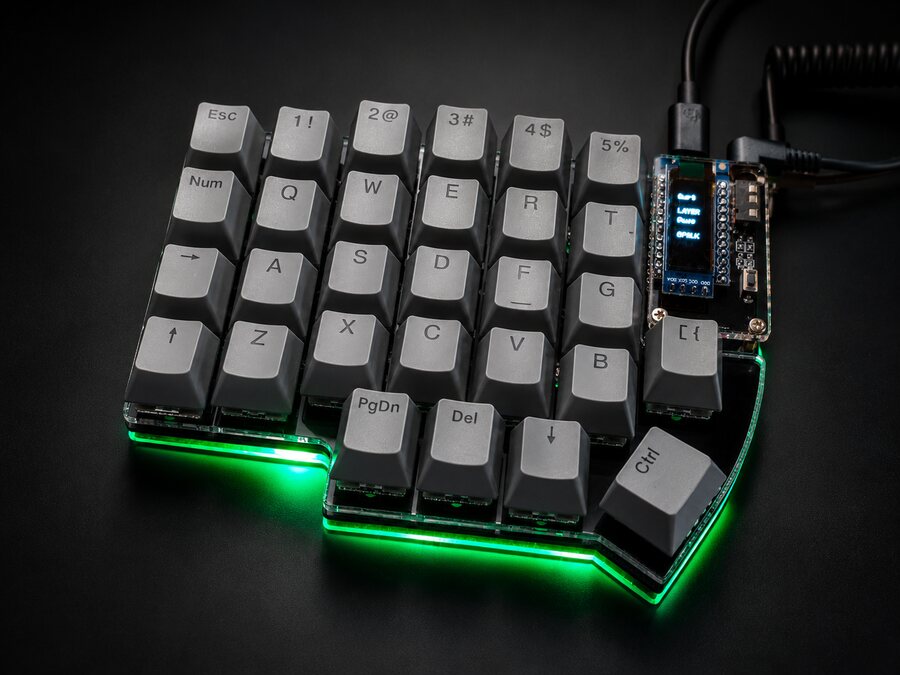
Left half of a gray Lily58 on a dark background, with the OLED screen on and green light under the case
The OLED shows the active layer and Caps Lock.
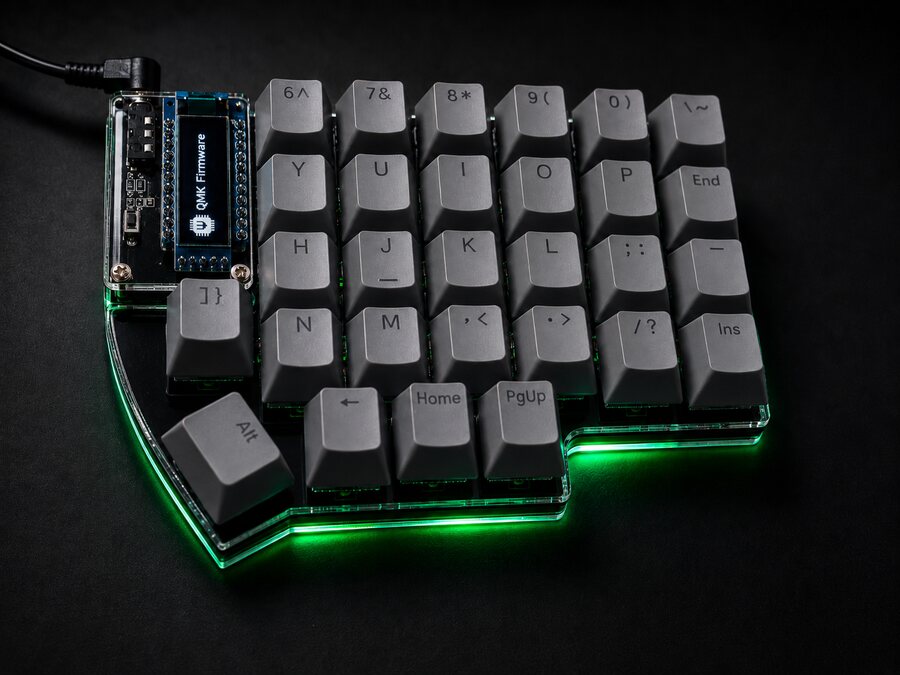
Right half of a gray Lily58, with the QMK logo on screen and the coiled cable plugged in
The coiled cable joins the halves.
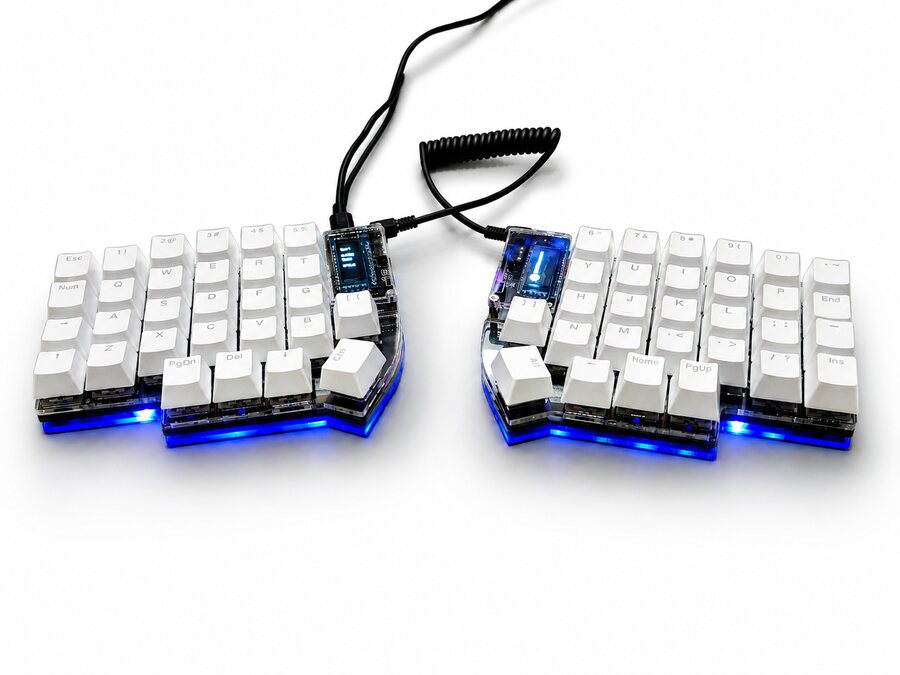
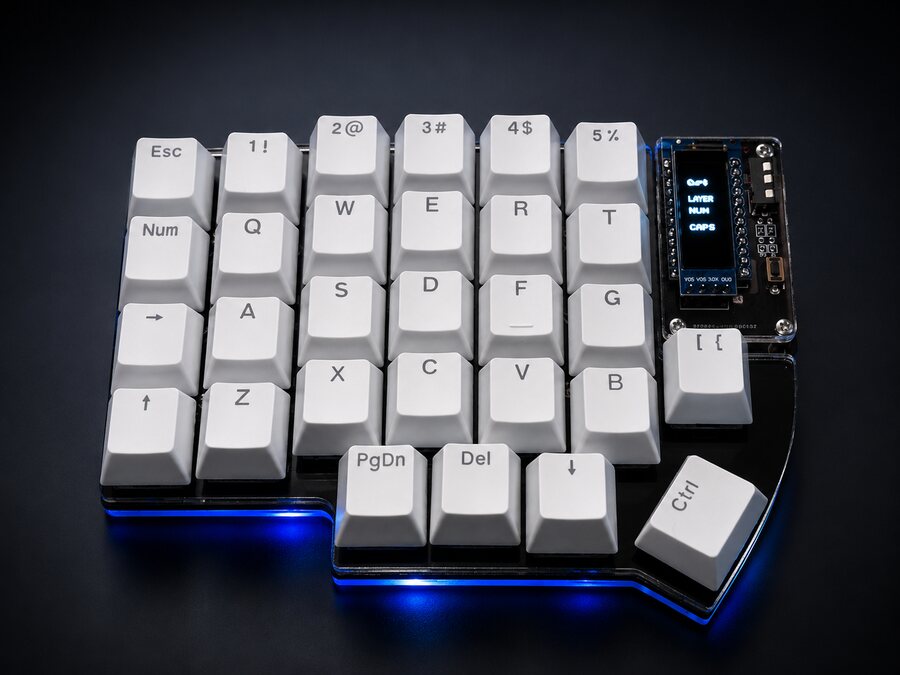
Left half of a white Lily58 on a dark background, with blue light under the acrylic case
The acrylic case lets the light through.

Tester

Just arrived? Test every key.

Plug in the keyboard, pick your model and press the keys one by one. The ones that respond stay marked. It works with any keyboard too, if you want to see where each key would land on a split.

0 of 42 keys

TabQWERTCtrlASDFGShiftZXCVBWin ⌘LowerSpaceLAYERBASEYUIOP⌫HJKL;'NM,./EscEnterRaiseAltGrzelvoq
Click here and start typing

  • Lower and Raise send nothing to the computer: they get marked on their own when you use a key from their layer, like a number on the Corne.
  • Some keys are caught by the system before the browser, like Win on some machines. If one doesn't get marked, try it on your computer.
  • The Sofle's knobs change volume and pages: you'll notice that on your computer, not here.

Layers

What's behind every key.

A key can do several things depending on what you're holding down. Pick a model and walk through its layers. All of it can be changed in VIA.

TabQWERTCtrlASDFGShiftZXCVBWin ⌘LowerSpaceLAYERBASEYUIOP⌫HJKL;'NM,./EscEnterRaiseAltGrzelvoq

Layer keys are marked in amber. Tap them on the drawing to switch layers.

How to get there: Nothing held

Letters in the middle; Tab, Ctrl, Shift and Esc on the sides. Space and Enter, one on each thumb.

Change any key with VIA

Open VIA in Chrome or Edge, authorize the keyboard and change whatever you like: keys, layers, macros and lighting. Changes are saved on the keyboard, not on your computer.

Open VIA

Practice

An afternoon to get used to your split.

Everyone types slower for the first few days, and that's fine. Pick your model, type the sentence and watch the drawing show you where the next key is.

0 words per minute

100% accuracy

space and enter live under your thumbs

TabQWERTCtrlASDFGShiftZXCVBWin ⌘LowerSpaceLAYERBASEYUIOP⌫HJKL;'NM,./EscEnterRaiseAltGrzelvoq
Click here and type the sentence

Getting started

From the box to your desk, in five steps.

  1. 1

    Join the halves, then plug in USB

    Connect the coiled cable between the two halves first, and only then the USB cable to your computer. To disconnect, do it in reverse: USB first. Unplugging the middle cable while USB is connected can damage the keyboard.

  2. 2

    USB goes into the left half

    The left half is the one that talks to the computer. If you plug in the right one, keys come out swapped.

  3. 3

    Test it right here

    Use the tester on this page: in a couple of minutes you'll know everything responds.

    Tester →
  4. 4

    Tune it with VIA

    Open usevia.app in Chrome or Edge and authorize the keyboard. Change keys, layers, macros and lighting; everything is saved on the keyboard.

    usevia.app →
  5. 5

    Give it a few days

    You'll type slower at first: that's part of switching. A little practice each day helps, and there's some right here.

    Practice →

A tip: don't flash other firmware unless you know what you're compiling. VIA covers almost everything, and a failure caused by other firmware isn't covered by the warranty.

Glossary

Words you'll hear.

Split
A keyboard divided into two independent halves, joined by a cable.
Columnar
Keys in straight columns, shifted up or down to match each finger's length, instead of rows shifted sideways.
Layer
An alternate set of functions for the same keys. It's active while you hold a layer key.
Lower and Raise
The layer keys under your thumbs. On the Corne, pressing both together takes you to a third layer, Adjust.
Transparent
A key that does nothing of its own on a layer and lets through what it does on the layer below.
Hot-swap
Sockets that hold the switches without solder. Pull one with the puller and fit another.
Switch
The mechanism under each key. Red and Black are linear (Black is firmer), Brown has a bump you can feel and Blue clicks.
Keycap
The key you touch. They're MX mount, the most common kind, so there are plenty to choose from.
OLED
The small screen on each half. Among other things, it shows which layer you're on.
Knob
A control that turns and can also be pressed. The Sofle's come set to volume and pages.
TRRS
The 3.5 mm cable that joins the halves. Plug and unplug it only with USB disconnected.
Pro Micro
The controller in each half: the tiny computer that reads the keys.
Underglow
The RGB light under the case. The Corne adds light under every key.
Reset
A button on each half used to load firmware. You won't touch it in everyday use.
VIA
The app to change keys, layers, macros and lighting without programming. It runs in your browser.
QMK
The open-source firmware running inside the keyboard. VIA works on top of it.
ZMK
Another open-source firmware, made for wireless keyboards. It's the one behind our wireless line, which we're working on.

Coming soon

No cables, with ZMK.

We're working on a wireless line built on ZMK, the open-source firmware for Bluetooth keyboards. There's no date yet: when it's ready, you'll see it here first.

Where to buy

Buy wherever suits you.

We sell in Chile, from assembled stock. These are our listings:

Zelvoq Store

Coming soon

Our own store, at store.zelvoq.cl.

MercadoLibre

All three models, with MercadoLibre's buyer protection.

Falabella

Lily58 on Falabella.com.

Paris

Lily58 on Paris.cl.

Questions before buying, or outside Chile? Write to us at [email protected].

Frequently asked questions